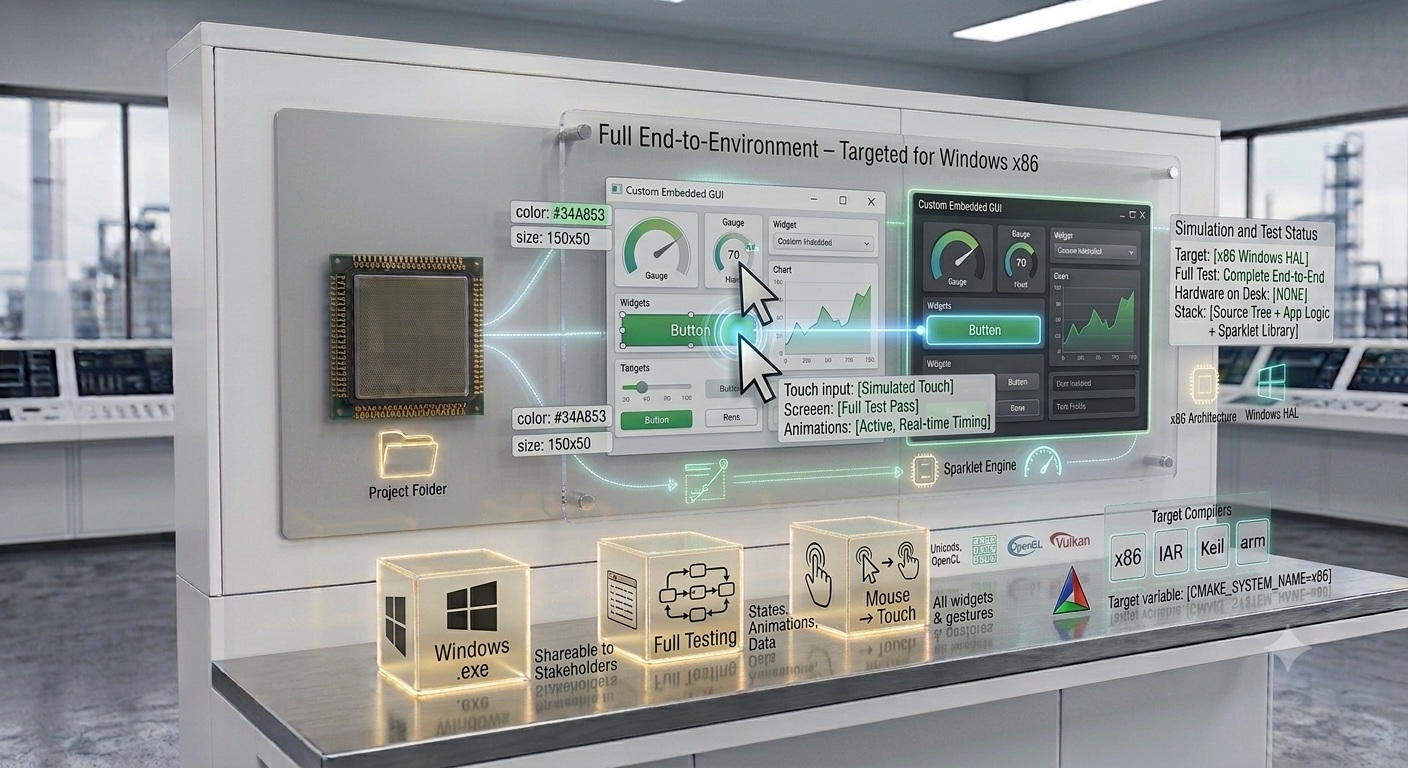
Sparklet's PC simulator runs the exact same C code as your MCU build — test screens, state transitions, animations, and data flows without hardware, from day one.
Embedded GUI PC simulation is the practice of compiling and running your embedded display application on a Windows desktop machine — using the exact same C source code that will ultimately execute on the target MCU or MPU — to validate screen layouts, state machine flows, animations, and data binding before any hardware is available.
Sparklet's PC simulator is not a mock-up viewer or a design preview tool. It is a full build of the Flint-generated screen code, the Sparklet widget library, and all application logic, compiled against a Windows x86 HAL that maps touch input to mouse clicks and display output to a native window. If a screen works correctly in the simulator, it will behave identically on target hardware — because the code is identical.
This page explains the two simulation modes available in Sparklet, the debug features the simulator provides, what the simulator cannot substitute for, and how it integrates into a team development workflow. See also: code generation, state machine editor, and performance benchmarks.
In-designer preview for instant feedback. Windows simulator build for full application testing. Both run the exact same Sparklet C code.
While designing screens in Flint UI Designer, a live preview panel reflects every change in real time. Add a widget, resize it, change a colour, adjust a layout — the preview updates immediately, with no compile step. The feedback loop between changing a property and seeing the result is sub-second.
The in-designer preview renders using the same Sparklet rendering engine as the target build, so colour blending, alpha transparency, font rendering, and animation timing are all faithful to what will appear on the embedded display. There is no separate "preview renderer" — the exact same Sparklet library is used throughout.

The full simulator build compiles the Flint-generated C source tree and your application logic together with the Sparklet library, targeting Windows x86 via a Windows HAL. The result is a native Windows executable (.exe) that opens a window sized to the target display resolution and renders the embedded UI at native pixel dimensions.
Mouse clicks translate to touch events. Mouse drag gestures activate scroll, swipe, and knob interactions. Keyboard input feeds TextEdit widgets. This allows complete testing of every screen, every button, every state machine path, and every animated transition — on any Windows PC, with no hardware on the desk.

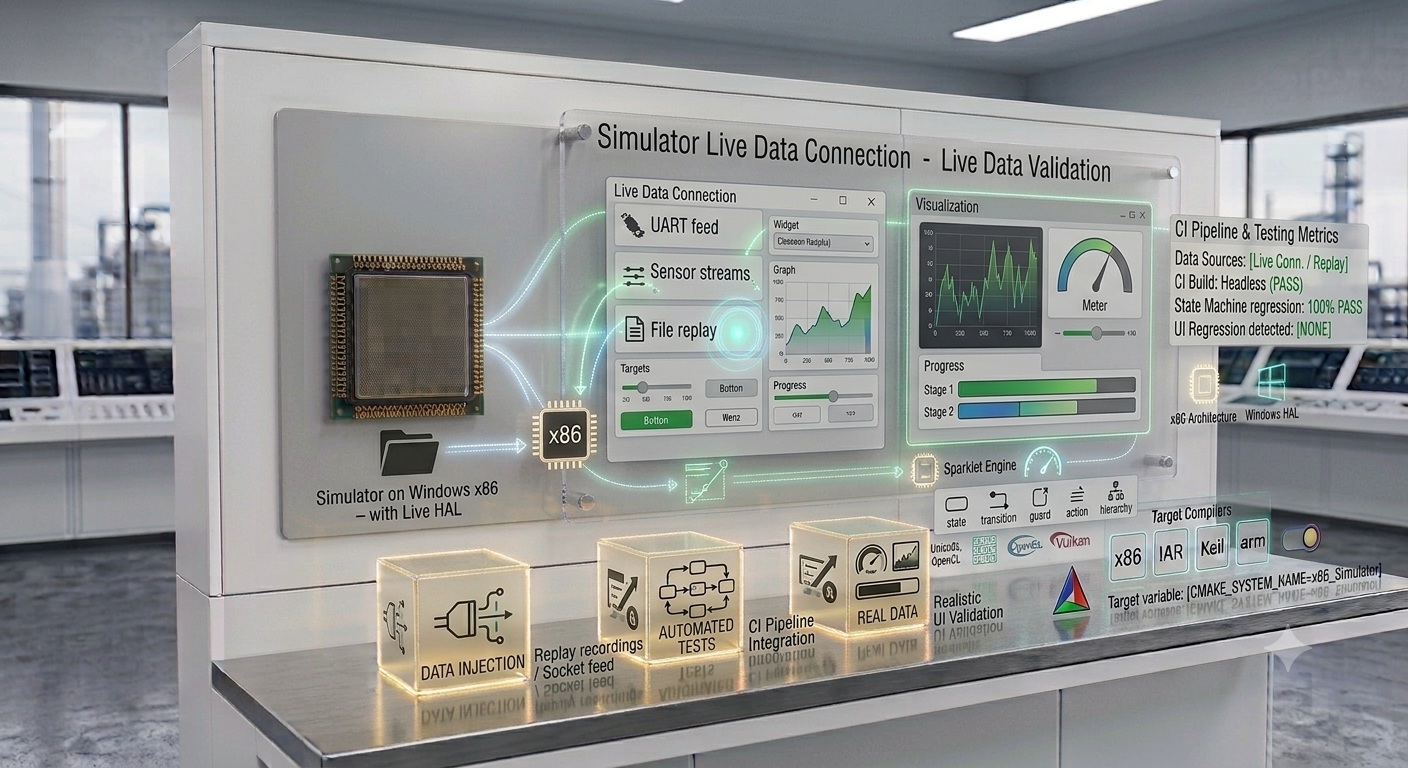
The Sparklet simulator build can connect to live application data sources during testing — UART feeds, serial port sensor streams, or file-based data replays — allowing the UI to be validated against real data values without target hardware. This is particularly useful for testing data visualisation widgets (graphs, meters, progress bars) where realistic value ranges and update rates matter.
Data injection via the simulator's stdin interface or a socket connection allows automated test scripts to drive the UI state machine programmatically, enabling regression testing of all screen paths as part of a CI pipeline.

Faster iteration. Changing a UI element on an MCU build requires editing source, recompiling, flashing, and power-cycling — a cycle that takes minutes per iteration on most embedded targets. On the PC simulator, the same change is visible in seconds. For a project with dozens of screens and hundreds of UI refinements, the cumulative time saving across the project is significant.
No hardware dependency for early development. UI work can begin the day the project starts, even if target hardware is still in board bring-up or procurement. A team can design, implement, and validate the entire UI layer on the simulator while hardware engineers finish the BSP. Both streams converge at integration, with the UI already proven.
Stakeholder collaboration without development tools. A Windows simulator build is a standard .exe that any team member or stakeholder — product manager, industrial designer, customer — can run on their laptop without any development tools or embedded hardware. Feedback on UI flows, wording, and layout is collected from people who would never interact with embedded development hardware.
Integration and regression testing. Test scripts can inject data values and trigger events programmatically against the simulator build, automating testing of all state machine paths. Automated regression testing on the simulator catches UI regressions before they reach hardware, where debugging is slower and more constrained. See the state machine editor page for HSM testing patterns.
The Sparklet simulator build includes three debug overlays that are not present in production firmware builds and incur zero overhead on target hardware.
A live scrolling panel records every widget event (touch press, release, value change), every state machine transition, and every screen navigation event — with timestamps. Trace unexpected behaviour or missed state transitions without a hardware debugger.
Hovering over any widget displays its ID, type, current state (normal / pressed / disabled / focused), and dirty/redraw status. Instantly confirm that a widget is in the expected state when debugging event handling or visual update issues.
Displays frame render time (ms), total widget count per screen, and dirty region count per frame. A useful guide to rendering complexity — note that values reflect PC performance, not MCU performance (see limitations below).
| Aspect | PC Simulator | Real Hardware | Impact |
|---|---|---|---|
| Widget logic & state machines | Identical C code | Identical C code | None — fully portable |
| Screen layout & animations | Pixel-accurate | Pixel-accurate | None |
| CPU/frame performance | Multi-GHz x86 — very fast | 168–600 MHz Cortex-M/A | Validate on hardware early |
| Display colour accuracy | PC monitor profile | TFT/AMOLED panel | Calibrate on target panel |
| Touch latency & feel | Mouse — negligible latency | Touch controller firmware | Test swipe/inertia on hardware |
| RAM/Flash consumption | Unlimited (x86) | Constrained (16–512 KB) | Check vs /performance targets |
| Shareable to stakeholders | Yes — standard .exe | No — needs dev hardware | Simulator ideal for reviews |
| Automated regression tests | Yes — headless, CI-ready | Limited without hardware CI | Simulator handles most cases |

The simulator runs the identical Flint-generated C source as the MCU build. No separate preview engine, no diverging code paths. What passes in the simulator runs on hardware.

Begin UI design, implementation, and validation on the simulator while board bring-up proceeds in parallel. Eliminate the hardware-wait bottleneck from your project timeline.

Send the .exe to any stakeholder. They run the full UI on their laptop — no tools, no hardware. Collect feedback from product managers, designers, and customers before prototype hardware exists.

The headless simulator mode runs on Windows build servers. Inject events programmatically to test every state machine path. Catch UI regressions automatically on every commit.
The simulator is a powerful tool for UI logic testing, but there are things it intentionally does not model. Understanding these limits prevents misplaced confidence during hardware bring-up.
Target hardware performance. The Windows simulator runs on a multi-GHz x86 processor with gigabytes of RAM. A 200 MHz Cortex-M7 with 512 KB of RAM is a very different execution environment. Frame rate figures seen in the simulator are not representative of MCU frame rates. Use the Performance & Memory benchmarks as a guide and validate frame rates on hardware as early as possible.
Display colour accuracy. A PC monitor renders colours differently from an embedded TFT or AMOLED panel, particularly at the colour depths (16-bit, 8-bit) common on low-cost MCU displays. Colour calibration and brand colour accuracy must be confirmed on the actual display hardware.
Touch latency and gesture feel. Mouse input via the simulator has different latency and gesture physics than a touch panel with its own controller and firmware. Swipe inertia, tap responsiveness, and multi-touch behaviour should all be validated on hardware with the actual touch controller integrated.
The recommended workflow is: use the simulator extensively for UI logic, state machine validation, and screen layout iteration; move to hardware as soon as BSP bring-up is complete for performance, display colour, and touch validation. The code generation pipeline makes switching between simulator and hardware builds a single-variable change in the build system.
Yes. The simulator compiles the exact same Flint-generated C source files and Sparklet library code as the MCU target build. The only difference is the HAL layer, which on Windows maps display output to a native window and mouse input to touch events. All widget logic, state machine behaviour, animations, and data binding are identical between simulator and hardware builds.
The free Sparklet evaluation includes Flint UI Designer and the Windows simulator. Design a screen, export, and simulate in minutes — before your hardware arrives.