Figma-to-Flint Workflow

The Flint Widget Export Plugin converts your Figma designs into interactive Flint widgets with minimal effort. It exports multi-state components, layer properties, and image assets into a structured ZIP package. Unlike simple PNG export, this plugin preserves interactivity, states, and structure, ensuring an accurate handover from design to development.

The exported package includes:

  • A complete .fig file of your design

  • An images/ folder with all assets used

  • Metadata required to recreate the widgets inside Flint

This allows designers to create once in Figma and developers to directly use the same components inside Flint. Below is the recommended workflow for creating, exporting, and importing Figma designs into Flint.

Creating a New Design Page in Figma

  • Open Figma desktop application.

  • Click “Design” to start a new design page.

    Creating New Design File :width: 100%

    Creating New Design File

  • The canvas and Figma libraries will appear. Optionally rename the page from the left sidebar.

    New Design File :width: 100%

    New Design File

Designing a Component Widget in Figma

A Figma Component is a reusable design element. Any changes made to the main component will automatically update all its instances. Flint requires widgets to be created as components with multi-state variants.

Steps to Create a Component Widget:

  • Step 1: Build the Base Widget

    • Draw a Frame (this is mandatory as Flint only supports frames as root containers).

    Frame :width: 100%

    Frame

    • Add Fill, Text, and Image layers inside it.

    Frame with Fill, Text and Image layers :width: 100%

    Frame with Fill, Text and Image layers

  • Step 2: Convert to a Component

    • Select the frame, then right-click → Create Component.

    Component Widget :width: 100%

    Component Widget

    • Add Variant Property:
      • Property name: e.g., State (capital S, case-sensitive)

      • Add value: Default

    • Click “+” to add another Variant Property
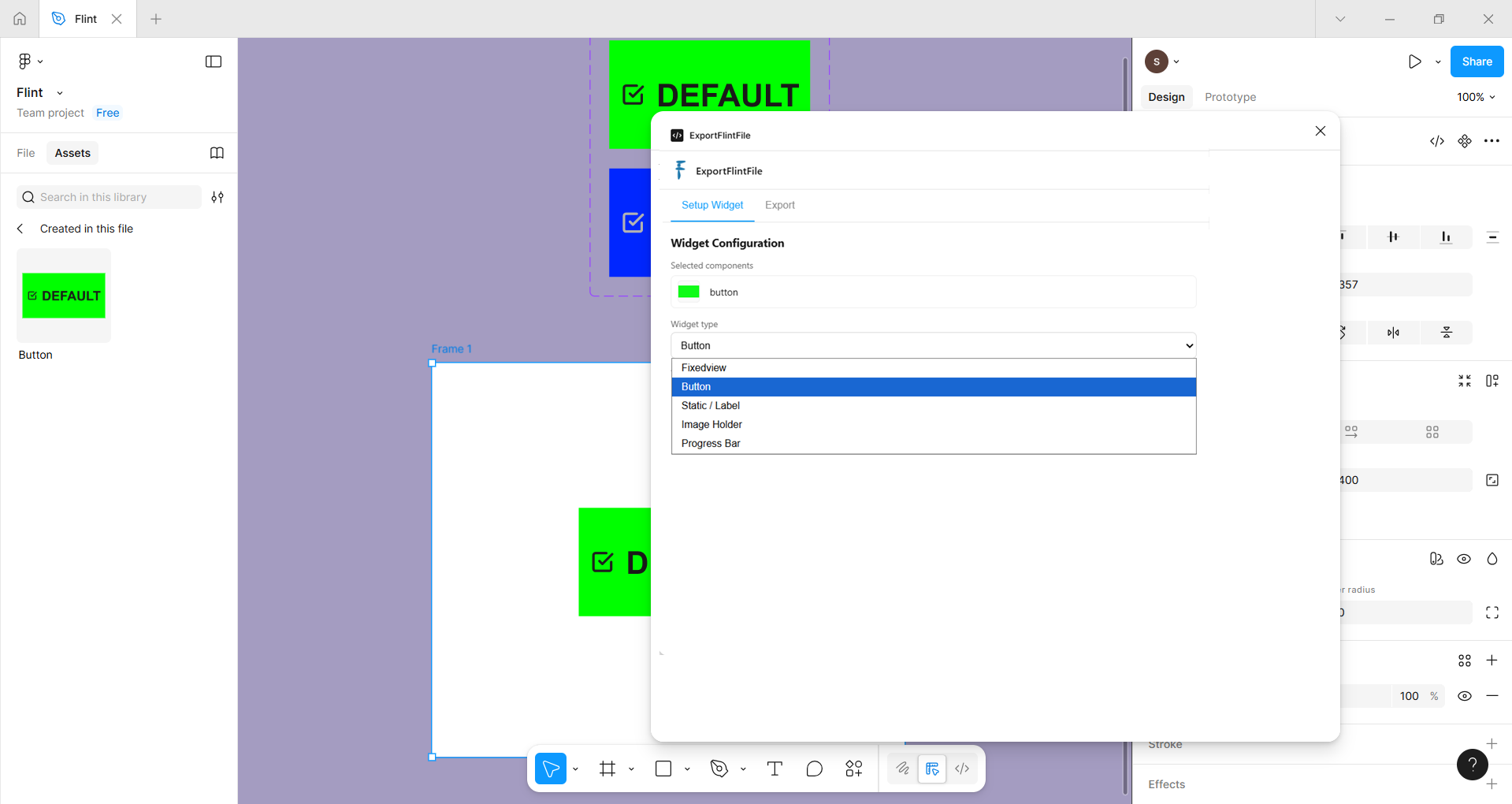
      • Property name: widget_type (Lowercase, uses underscore, case-sensitive)

      • Add value: e.g., button(Lowercase, case-sensitive).

    Adding Variant Properties :width: 100%

    Adding Variant Properties

Supported Flint widget types (case-sensitive): Button, Static, ImageHolder, ProgressBar, Slider, CircularProgress, Dial

  • Step 3: Add More States

    • Add new variants using:
      • (+) button below the component, or

      • Design panel → Add Variant

    • Add new State names (e.g., Active, Pressed).

    • Update the fill, text, or image for each variant.

All updates inside the component will automatically reflect in its instances.

Designing a Button Widget in Figma for Flint

  • Open Figma and locate the bottom design toolbar, Click the Frame tool and drag on the canvas to draw a rectangle.

    Frame :width: 100%

    Frame

  • Select the Frame and In Design panel → Fill Add solid color: #00FF00 (Green).

    Frame with Fill color layer :width: 100%

    Frame with Fill color layer

  • Select Text tool from toolbar, Click inside the frame and Type “Default”.

    Frame with Fill and Text layers :width: 100%

    Frame with Fill and Text layers

  • Open Figma Simple Design System or your icon library, go to the Icon group, and drag an “Check” icon into the frame — or import an image from your system storage.

    Frame with Fill, Text and Image layers :width: 100%

    Frame with Fill, Text and Image layers

Convert Design to Component:

  • Select the Frame and right-click → Create component.

    Component Widget :width: 100%

    Component Widget

  • In the right panel, under the Design tab, click “+” to add variant properties.
    Add Variant properties
    • Property name: State (capital S, case-sensitive)

    • Add value: Default

    Adding States :width: 100%

    Adding States

  • Click “+” again to add another variant property.
    • Property name: widget_type (Lowercase, uses underscore, case-sensitive)

    • Add value: button(Lowercase, case-sensitive).

    Adding Widget Type :width: 100%

    Adding Widget Type

Update Component Widget with Multiple States:

Figma allows multiple states to be created using variants. You can add new states in two ways:

Method 1: Using the (+) Icon

  • Select the Main Component.

  • Click the “+” icon below the component to create a new variant.

Method 2: Using Design Panel

  • In the Design panel → Component section and click “Add variant”.

Adding Variant :width: 100%

Adding Variant

Add New State:

  • Select the newly created variant.

  • In the Design panel, expand the State property.

  • Click “Add new”, type Active, and press Enter.

Adding States - Default and Active :width: 100%

Adding States - Default and Active

Modify Visual Properties for the New State

  • For the Active state:

    • Update the text layer to Active.

    • Change the frame fill color to #0000FF (Blue).

    • Replace or update the icon to represent the active state.

    Component Widget with two States :width: 100%

    Component Widget with two States

All changes made to the main component variants are automatically reflected in all instances.

Create an Instance for Layout Use

  • Create a new Frame and adjust its width and height as required.

  • From the Assets panel (left side), locate the created component.

  • Drag and drop the component into the new frame.

    Component Widget in new Frame :width: 100%

    Component Widget in new Frame

Switch Between States

  • Select any variant frame.

  • Choose the required state from the State dropdown.

  • Figma automatically switches to the selected state.

Export Flint File from Figma Using the Plugin

  • Right-click inside the frame.

  • Select Plugins → Development → ExportFlintFile.

    Export Flint File :width: 100%

    Export Flint File

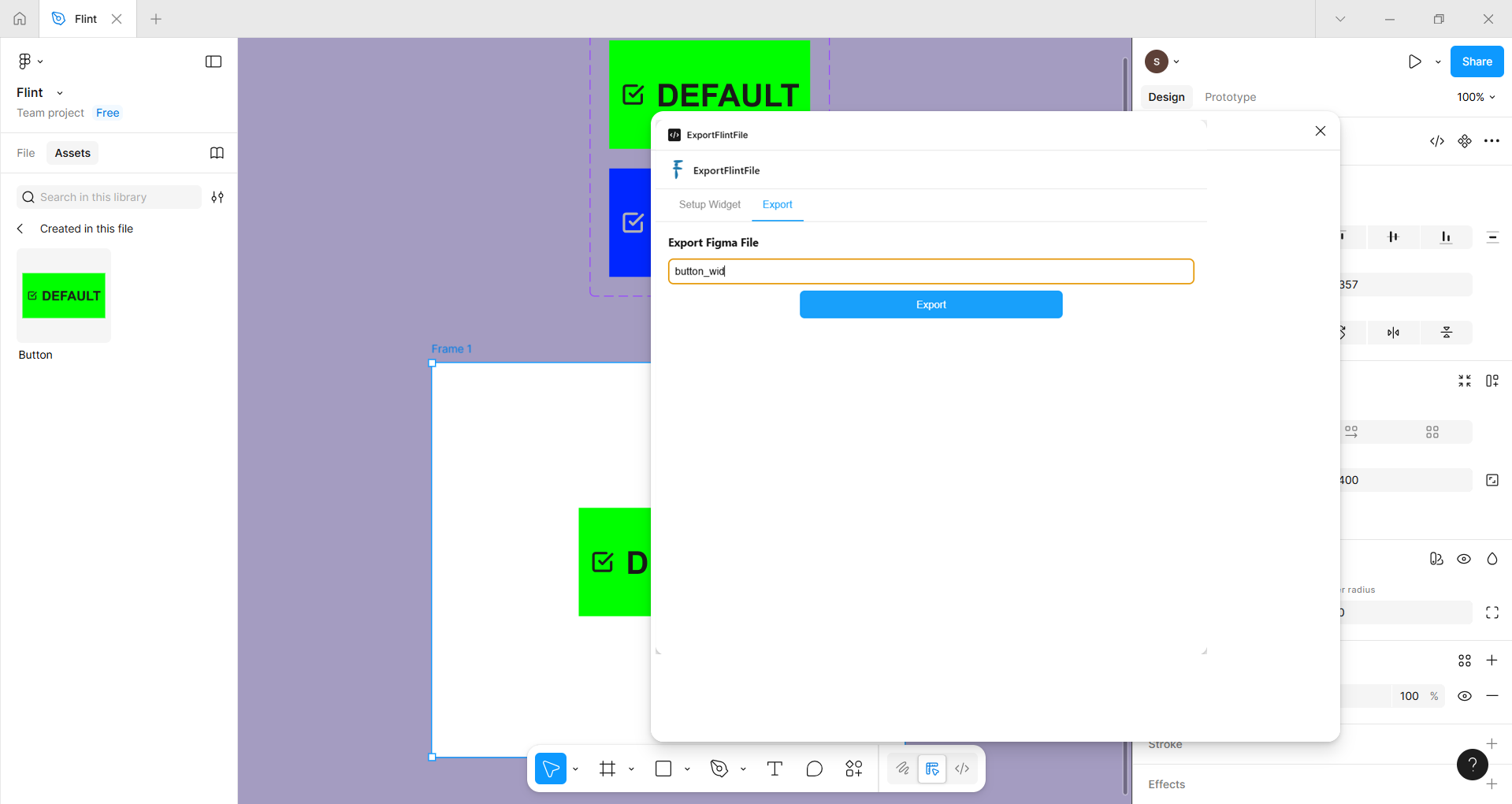
  • In the dialog box, enter the desired file name and click Export.

    Export Flint File :width: 100%

    Export Flint File

  • Choose a location to save the ZIP file.

    Flint File :width: 100%

    Export Flint File

After extracting the ZIP file, you will find:

  • The Figma .fig file

  • An images folder containing all exported image assets (if images are used)

Copy Resources to the Flint Project

  • Copy the .fig file into the Flint project → resource folder.

  • Copy all images from the images folder into Flint project → resource → images folder.

Import Figma File into Flint EFV

  • Open the Flint application and create a new EFV file.

  • In the EFV creation wizard, enable the “Import Figma File” option.

  • Click Browse and select the .fig file from the project’s resources folder.

    Importing Figma File :width: 100%

    Importing Figma File

  • Enter the EFV file name and click Finish.

The Figma design is now successfully imported into the Flint EFV file and ready for further development.

Importing Figma Design :width: 100%

Figma Design in Flint


Importing Figma Design :width: 100%

Figma Design in Flint