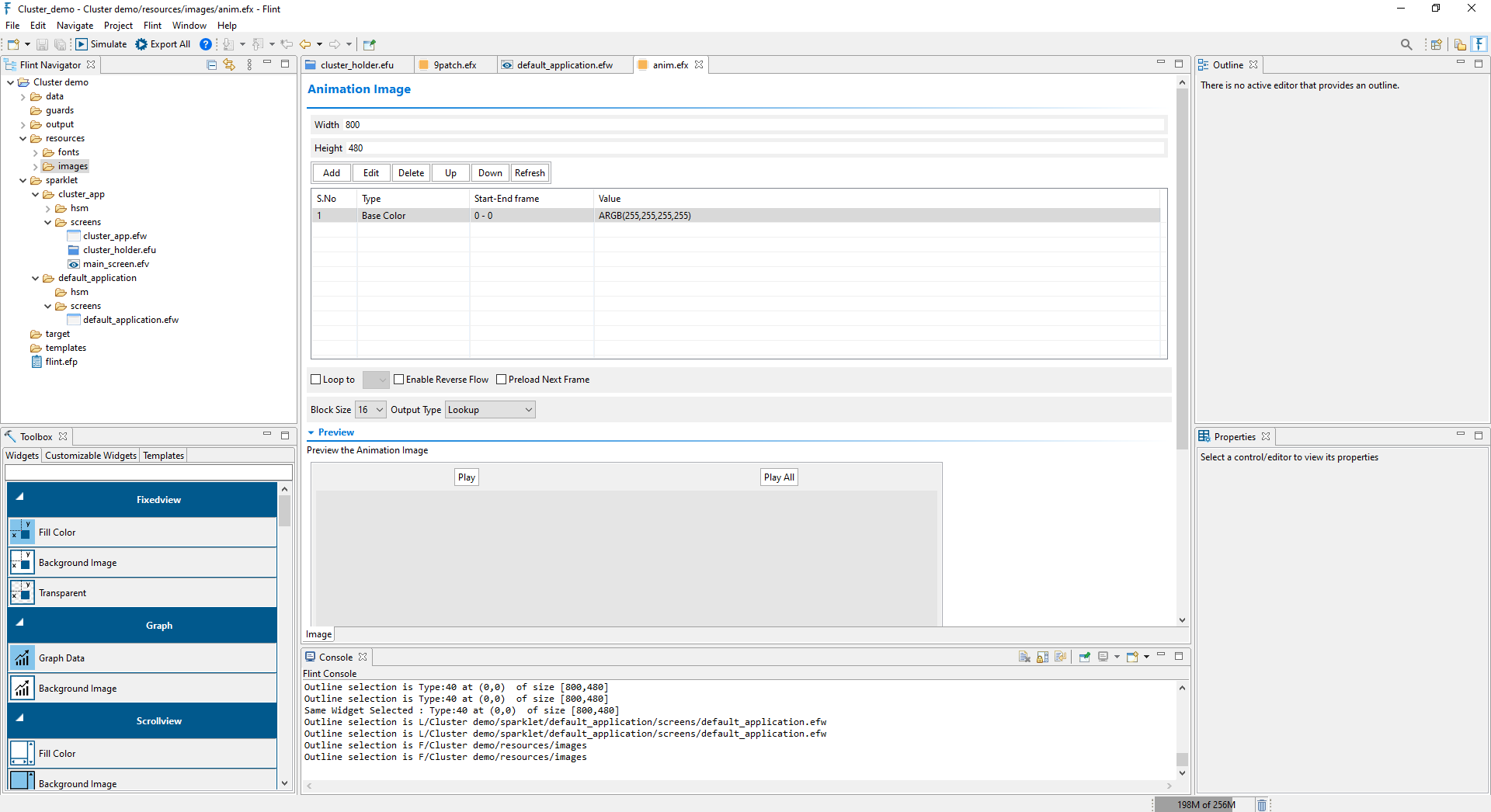
Animation is a process that creates a kind of illusion of movement on the screen by displaying a sequence of still images. While PNG images tend to consume more memory, using JPEG images for these sequences can significantly reduce memory usage. To create an EFX animation image in Flint, right-click on the images, select “New,” and then choose “Project.”
In the dialog, select Sparklet EFX option. Now select EFX type as Animation and click Next. Once entered the file name (anim.efx), the EFX file for animation is created as below:
Place the exported sequence of images in the “sequences” folder under the “images” folder.
Now click on the Add, select Sequence Base Type as “ Image Sequence” from the drop-down list and then click on the Base value. Select the initial image in the sequence and click Ok. Now the sequence of images with frame values has been included and sequences can be played in the preview section.
Sequence
Base Type
Description
Base Color
The color to use as the fill color for the frame.
Base Image
To select an image for the frame from the list of
image selection dialogs.
Image
sequence
An image sequence is a series of sequential still
images that represent frames of an animation. The
images are saved within one folder in the sequences
folder under the images and are labeled with an
incrementing file name to arrange their order of
occurrence (For e.g.:file_name_000).
Other properties for animation images are as follows:
Loop to – To repeat from the given frame for a specified number of times.
Enable Reverse flow – To reverse the order of frames in a sequence of images – useful when creating swipe buttons.
Preload Next Frame – To preload the image frame in the background, so the next consecutive frame can open and shown after the current frame.
Block Size - To specify the maximum length of a data block in bits
Output Type – Flint supports the following output types in animation: